Two-Factor Authentication (2FA)
Two-Factor Authentication (2FA) adds an extra layer of security to your account. When enabled, you will be required to confirm sign-ins using a second verification method.
Path: Settings → Security → Two-Factor Authentication
Why Enable 2FA?
- Protects your account from unauthorized access
- Adds an extra verification step during login
- Uses secure, time-based authentication codes
How to Enable Two-Factor Authentication
Step 1: Open Security Settings
Navigate to Settings → Security → Two-Factor Authentication and click Enable 2FA.
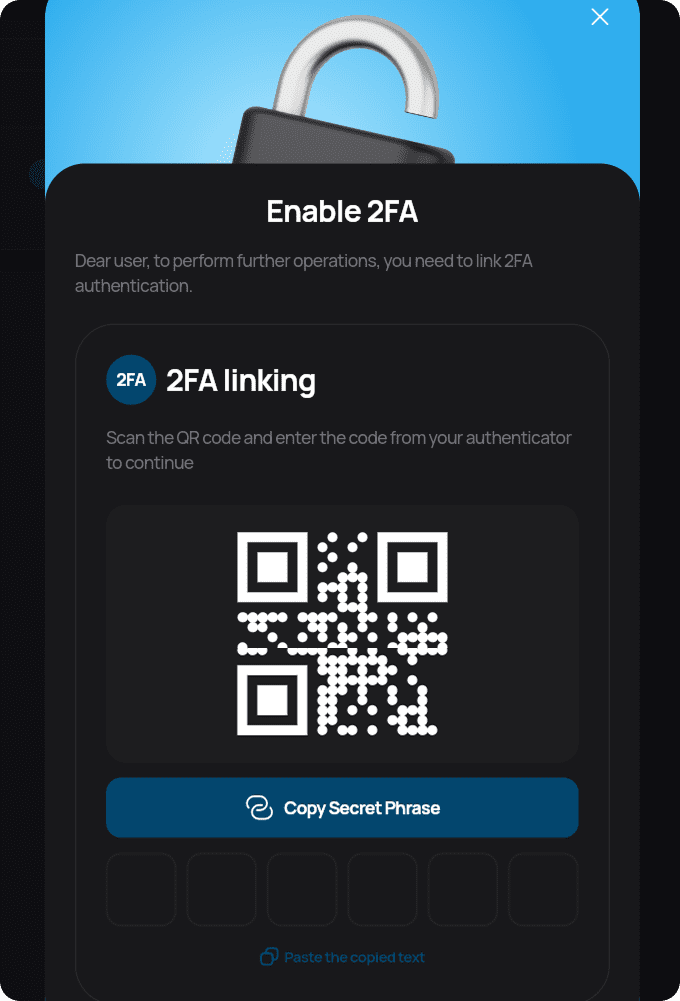
Step 2: Scan the QR Code
Open an authenticator app on your mobile device such as Google Authenticator, Authy, or Microsoft Authenticator.
- Select Add Account or Scan QR Code.
- Scan the QR code shown on the screen.
Alternative method: If you are unable to scan the QR code, click Copy Secret Phrase and manually enter it into your authenticator app.
Step 3: Enter the Verification Code
Your authenticator app will generate a 6-digit code that refreshes every 30 seconds. Enter this code into the verification field and click Confirm to complete setup.
2FA Successfully Enabled
Once enabled, Two-Factor Authentication will be required for logging in and performing sensitive account actions.
Security Tips
- Keep your authenticator app secure
- Do not share your secret phrase or verification codes
- Store backup or recovery codes safely if provided
Need Help?
If you lose access to your authenticator app or experience issues enabling 2FA, please contact customer support for assistance.